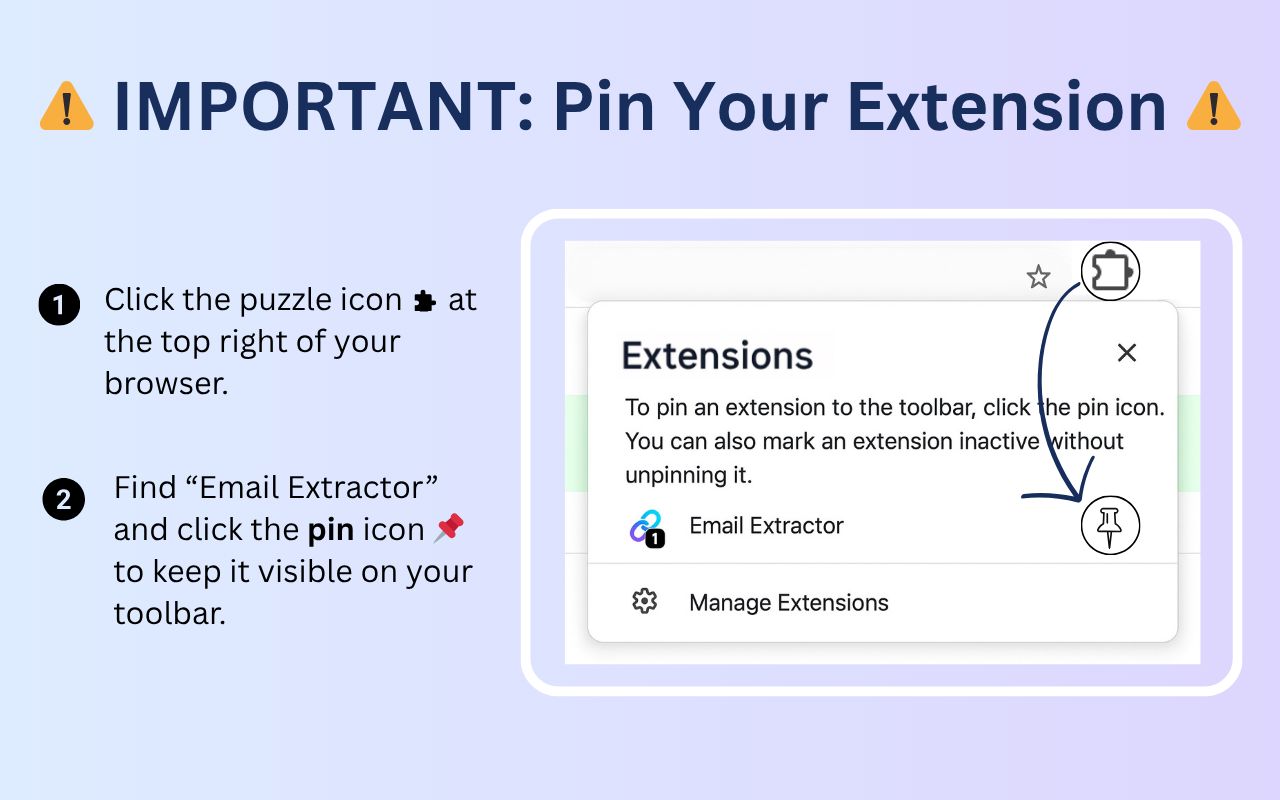
Important: Pin your extension
Extension successfully installed

Check the user manual

  • How to use it?
  • How to automate?
  • Advanced features
  • How to upgrade/cancel?
Check the user manual

Email Extractor discovers all the email addresses on the website you are visiting.
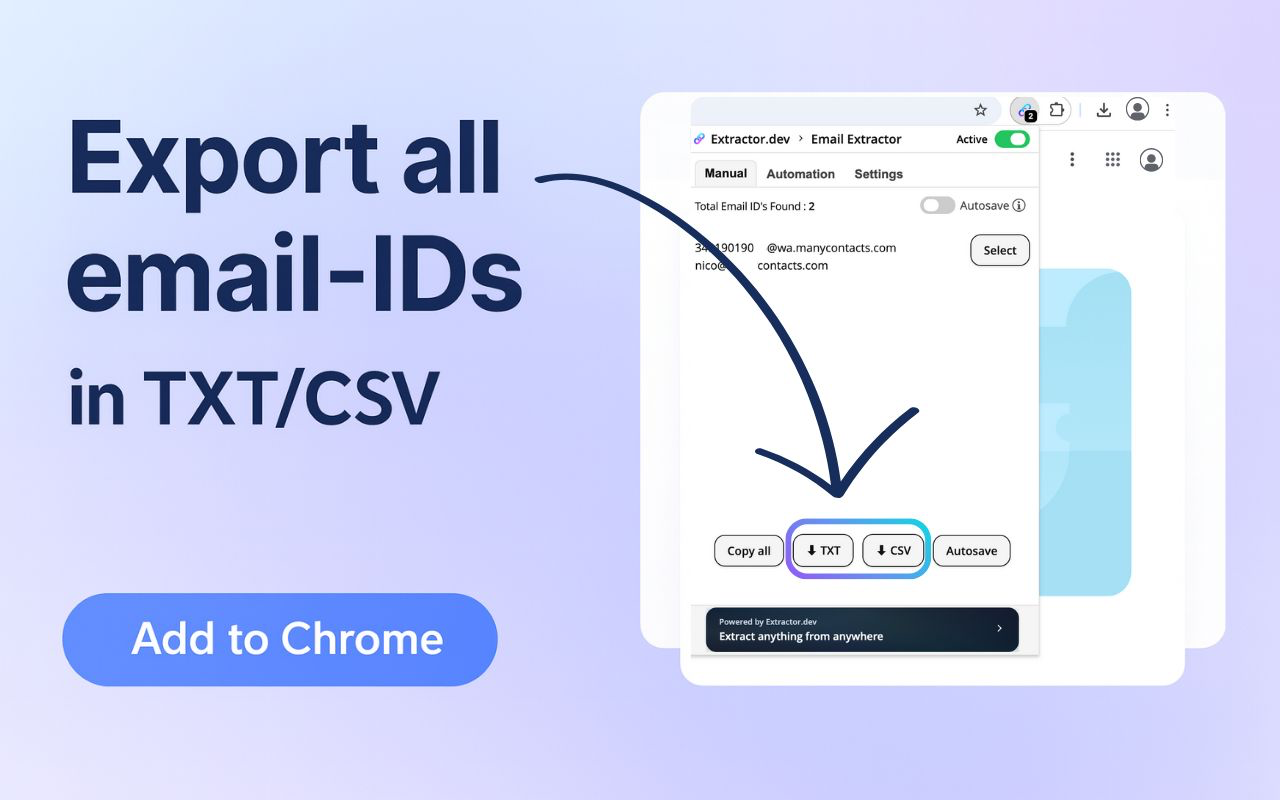
Then, you can export all the emails to a CSV file.

AutoSave + Automation: how it works

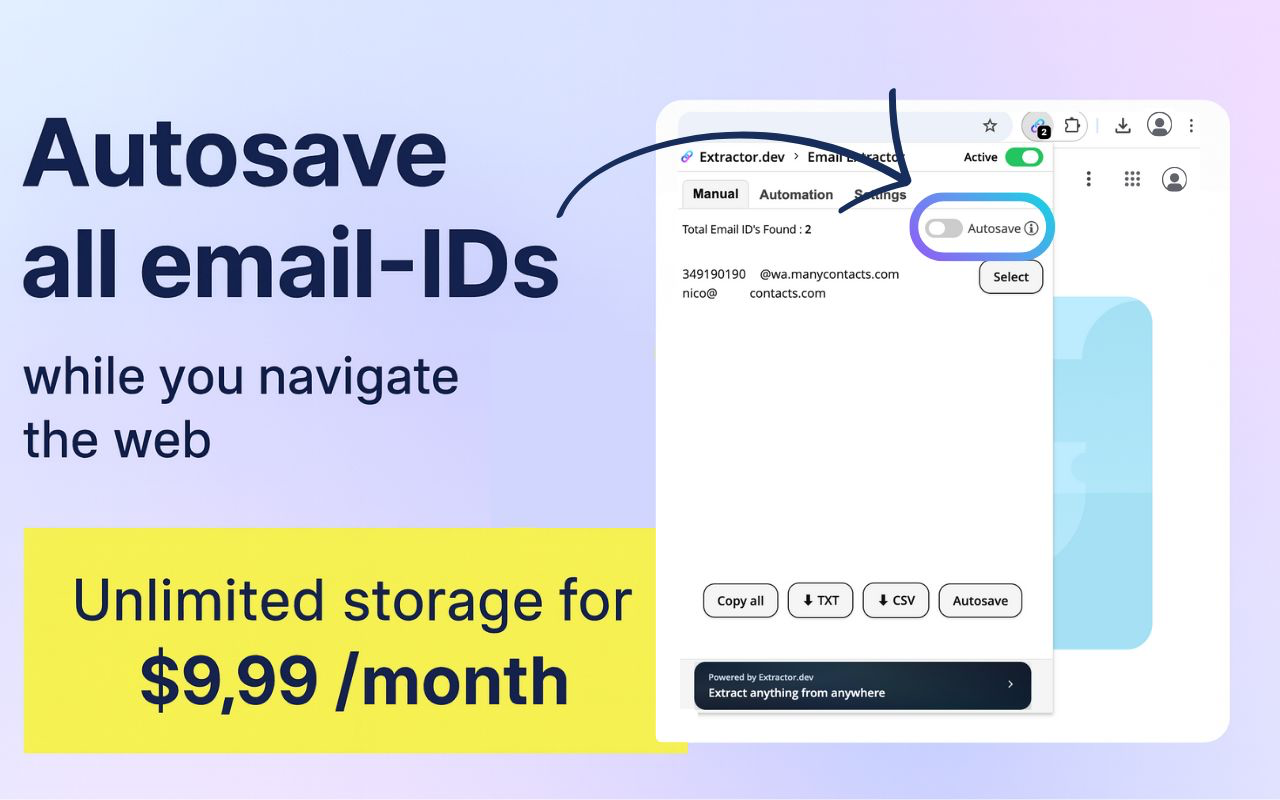
  • AutoSave: this feature stores, in the cloud, all the email IDs from every page you visit.
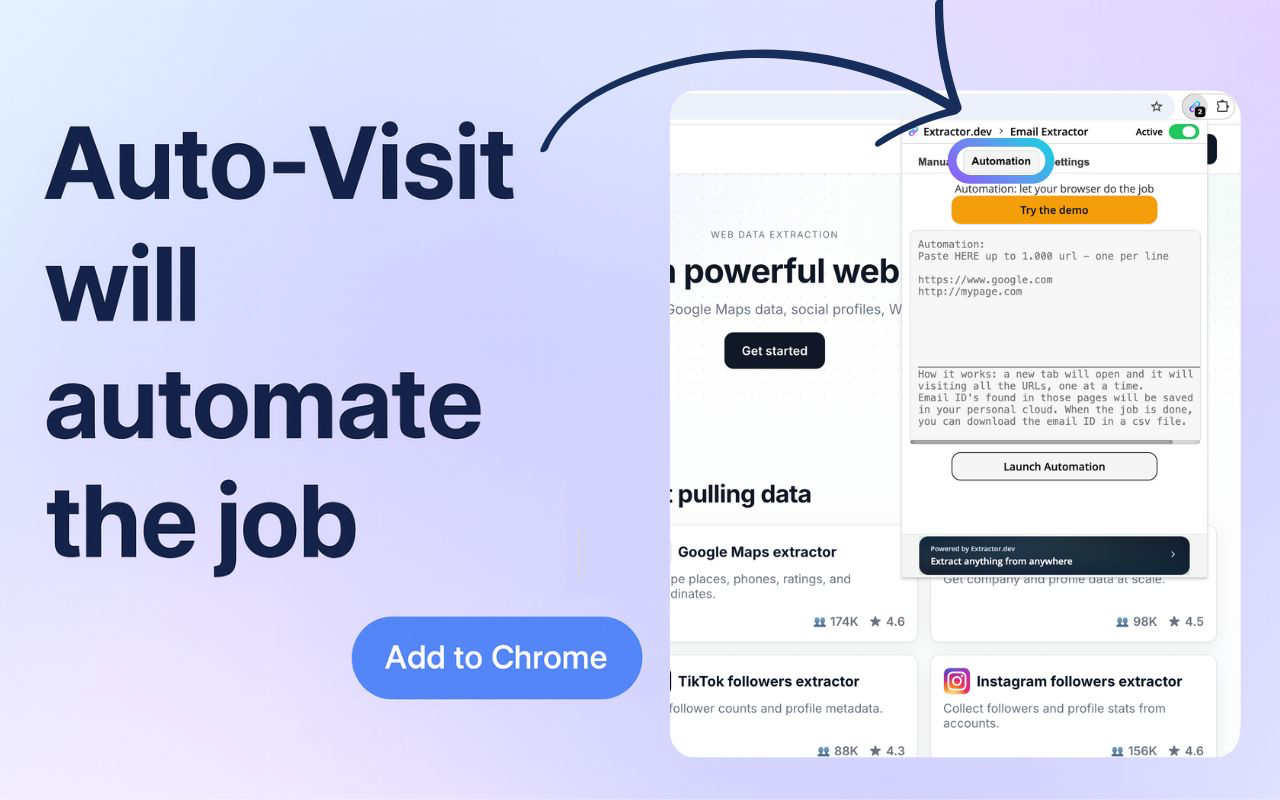
  • Automation: automatically visits up to 1,000 URLs that you have previously pasted into the extension.
How AutoSave works

  • When the AutoSave feature is active, it keeps all the email addresses while you browse the web.
  • For each email saved, it collects the URL & date/time when it was found for the 1st time.
  • Unlimited access to this new feature requires to take a premium paid plan. To cancel your subscription send an email to support@www.email-extractor.io and your subscription will be cancelled automatically.
  • When you activate AutoSave for the first time, make sure to refresh the current tab you are visiting to save the email IDs from this page.
  • To make it work on several tabs, you have to visit/click each tab. You cannot "open a new tab" and close it before seeing the tab, otherwise it will not save the emails.
  • All AutoSaved email addresses are stored in the cloud; you can download them to CSV at any time.
  • Do not use this feature to build spam lists.

How Automation works

  • Paste a list of up to 1,000 URLs in the widget and start the automation. A new tab will open and visit each URL one at a time, AutoSaving all email IDs found on those pages.
  • If you close the Automation Tab, the process will stop, but you can restart the process at any time.
  • When the 1,000 URLs have been processed, you can launch a new batch of 1,000 new URLs.
  • Disclosure: some websites may block your account/IP if you scrape their pages. Example: LinkedIn may stop your account if you visit more than 1,500 of their pages per day.